
Configure the analyses
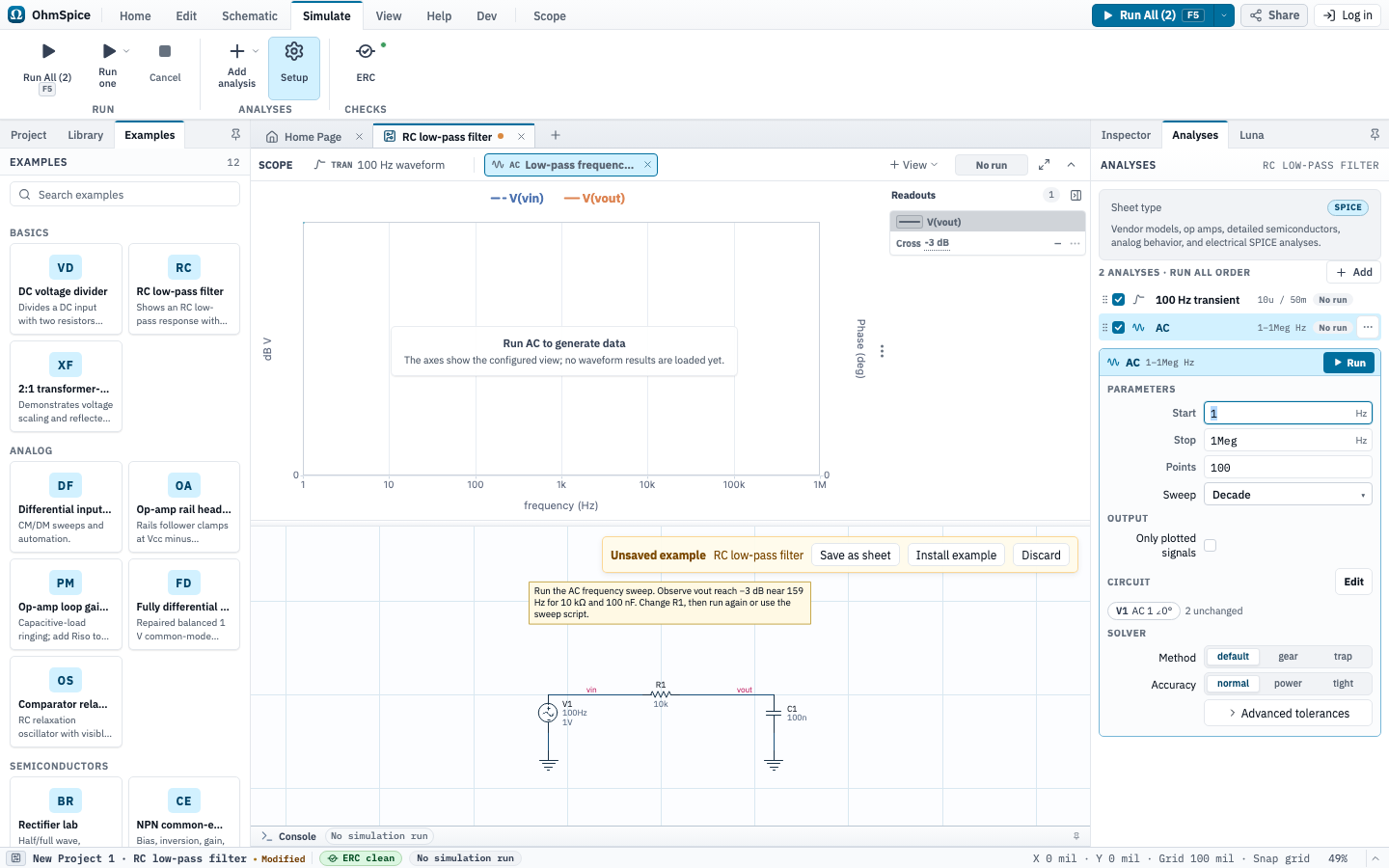
A new SPICE Circuit schematic starts with one analysis. The Simulateribbon contains the actions you use while simulating: Run, Add analysis, Setup, and ERC. Choose Setup to focus the Inspector'sAnalyses section, where the selected analysis's parameters, solver method, accuracy, and advanced tolerances live.
Add analyses
Multiple analyses are available on a SPICE Circuit sheet. Each analysis keeps its own settings, solver options, source values, and result status. The schematic is shared; the run configuration is not.
- Open the Simulate ribbon and choose Add analysis.
- Select Bias Point, DC Sweep, AC, or Transient.
- Choose Setup or select the new row in the Analyses inspector to edit that analysis.
- Repeat Add analysis for each independent result you want to compare.
Choose the analysis kind
| Analysis | Result | Typical question |
|---|---|---|
| Bias Point | A scalar operating-point table. | What voltages and currents does the circuit settle to? |
| DC Sweep | Values across a swept source range. | How does a DC operating point change as an input varies? |
| AC | Small-signal frequency response, with magnitude and phase in Scope. | What gain and phase does the biased circuit present over frequency? |
| Transient | Time-domain voltage and current waveforms. | How does the circuit respond over time to its configured sources? |
Set the Run All order
The Analyses inspector lists every configured analysis. With more than one analysis, drag rows into the order you want. The list order is both the Run All execution order and the grouping order for Scope views for each analysis. An analysis name can distinguish two analyses of the same kind, such as two AC sweeps with different ranges.
The list header shows the configured count and Run All order. Select a row to edit its analysis and solver controls. Other analyses keep their own settings.
Include or skip an analysis
Each row has an Include [analysis] in Run All checkbox. A checked analysis is part of the batch. Clear the checkbox to leave the analysis out of the next batch while keeping it configured and runnable by itself. The primary ribbon action shows Run All (N), where N is the number of included analyses.
Run all or run one
Press F5 to repeat the last Run All or Run one choice during the session.
- Choose Run All (N) to run the included analyses in list order.
- Choose Run one in the Simulate ribbon, then select the analysis you want to run.
- Alternatively, open a row's options and choose Run now, or select the analysis and use its Run action.
- Use Cancel to stop the active batch. Results from completed analyses remain available.
Running one analysis updates only that analysis's result. A later schematic or analysis edit marks the affected result stale without discarding its last result; rerun the analyses you need for the new configuration.
Configure source behavior per analysis
DC bias and the transient waveform are properties of the schematic source. AC stimulus belongs to the selected AC analysis. Select an AC analysis inAnalyses, choose Edit in itsCircuit section, select a source, and useAC drive, Magnitude, andPhase. These values apply only to that analysis and do not change the source's DC or transient waveform. You do not need two series sources.
AC analysis linearizes the circuit around its bias point. A transient waveform does not become the AC waveform; the selected analysis's enabledAC drive, Magnitude, andPhase define the small-signal excitation.
Drive a source from a data file
Select a voltage or current source and choose PWL · Data fileas its waveform. PWL connects each pair of samples with a straight line. Both uniform and non-uniform time intervals are supported.
- Choose Choose data file…, then select an existing project file or Upload data file….
- Use a CSV, TSV, or TXT file with at least two columns and two samples. Comma, tab, semicolon, and whitespace delimiters are supported. MAT and XLSX files are not supported.
- In the column headers, assign Time and Voltage or Current. Check the suggested columns and their units. Recognized time headers include
t,time,elapsed_time, andtimestamp. - If needed, open File options to set the delimiter, skip metadata rows, or change whether the first remaining row is a header. Choose Update preview.
- Review the plot, time range, and maximum timestep, then apply the selections.
Header units can supply the initial selection; otherwise seconds and V or A are assumed. For absolute timestamps, select ISO timestampand Start time at the first sample. Timestamps must include a timezone. The first sample then becomes time zero.
Selected cells must be finite numbers, and converted times must be nonnegative and strictly increasing. Duplicate times, decreasing times, and missing values block the mapping. Use Show row beside an error to inspect it; OhmSpice does not sort or discard invalid samples. Unused columns may contain text.
Select a placed source and choose Edit data / columns… to change its mapping. Sources can share one file while selecting different columns or units. Apply commits the change; Cancel leaves the source unchanged. The table loads visible rows as you scroll, and the plot shows a reduced preview. Simulation uses every selected sample.
The source holds its first value before the first sample and its last value after the last sample. Transient simulation visits the waveform knots and limits its maximum timestep to the smallest selected time interval across active sources, unless an existing limit is smaller. A very short interval can make a long simulation expensive; reducing displayed plot points does not reduce this simulation cost. DC bias and AC drive remain separate settings.
Files are limited to 5 MB (5,000,000 bytes), 500,000 data rows, 64 columns, and 2,000,000 cells. See Data filesfor replacement, backups, sharing, and storage limits.
Compare AC analyses
Add other AC analyses when you want different sweep ranges or solver settings on the same schematic. Each analysis keeps its own AC drive,Magnitude, and Phase values. Changing the selected analysis does not change another AC analysis or the source's DC and transient waveform.
Inspect results or diagnose an error
Select the matching Scope view to inspect each result. See Scope for panes, cursors, readouts, Spectrum, and export. If a run fails, use Simulation solvers to diagnose convergence and timestep errors.