
My Library and your account
My Library is tied to your account. Sign in and verify your email before browsing, creating, editing, or saving a Part. In the application, open the Library panel and choose My Library; use Search My Libraryto find saved Parts.
A signed-out browser can keep an unfinished Part locally. ChooseSave to My Library after signing in to make it available from your account.
Start a Part
- Open the Library panel and choose New Part.
- Choose a starting point: Manufacturer Part, Import SPICE model, Blank SPICE, or Circuit.
- Name the Part and continue into its document tab.
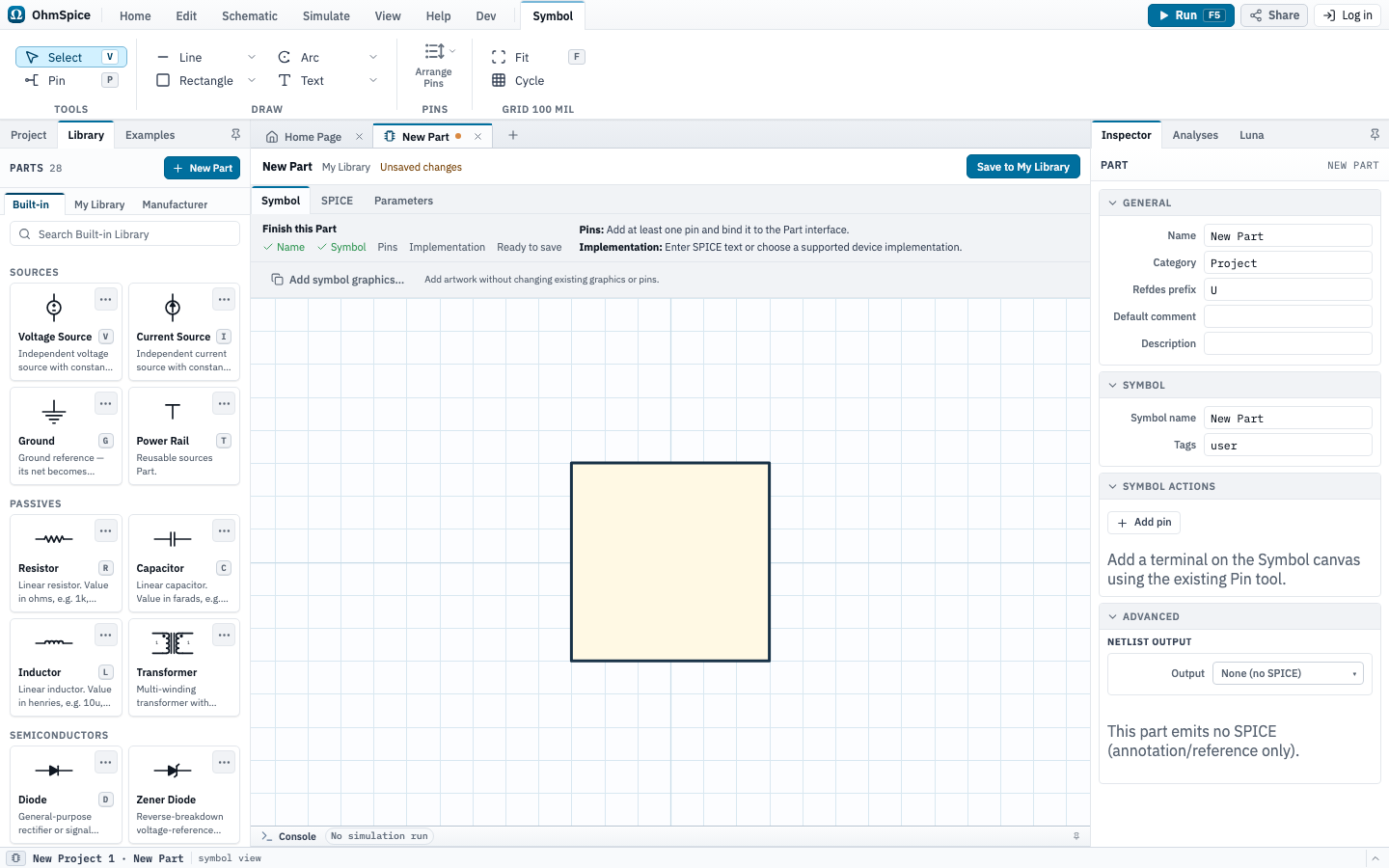
Adding a Manufacturer Part or importing a vendor model creates an editable SPICE Part. A Circuit Part turns a schematic into a reusable component.
Create a Blank SPICE Part
A SPICE Part opens with Symbol, SPICE, and Parameters views.
- In Symbol, draw the glyph and place its pins. Copy existing symbol… starts with an existing diode, transistor, op-amp, or other shape.
- In SPICE, enter or paste a supported textual model or subcircuit. Review the compiled preview and diagnostics.
- Connect each symbol pin to the intended Part port and SPICE terminal. Moving, rotating, relabeling, or changing a pin's electrical type does not change the source terminal order.
- Add public values in Parameters to make them adjustable on placed components.
- Choose Save to My Library after resolving any reported errors.
Create a Circuit Part
A Circuit Part uses the schematic editor for its source and the Symbol editor for its external appearance.
- In the Circuit view, place Built-in or My Library Parts and wire the child circuit.
- Choose Port in the contextual Part group and place one terminal for every external connection. New Ports start as
P1,P2, and so on. - Rename or reorder Ports as needed. The corresponding Symbol pins update automatically while retaining any pin layout that can be preserved.
- Arrange the generated pins in Symbol. Arrange Pins offers Auto, Match Ports, Alphabetical, Left, and Right layouts.
- Use an instance value such as
=resistanceor=(period-deadtime)/2in the child Circuit, then choose Sync from circuit in Parameters to add missing defaults. - Choose Save to My Library, then place the saved Part like any other library component.
You can also select supported objects on a project schematic and choose Create Part from Selection. The selection is copied into a new Circuit draft; the source schematic is not changed. Add Ports and validate the draft before saving.
Ground is global. A Ground symbol inside a Circuit Part connects to node 0 in the whole circuit, including other instances and nested Parts. Circuit checks name Parts that provide this ground. To keep each instance's reference separate, expose it as a Port and wire that Port in the parent circuit instead of placing Ground inside the Part.
Define instance Parameters
The Parameters view controls the fields shown when the Part is placed. Each row has a label and a default value. For SPICE Parts, each parameter also maps to a name in the model source.
- Choose Add Parameter to create a row. Double-click a cell or press F2 to edit it.
- Use Parameters for values a schematic author should change per instance. Keep model internals and fixed device details out of the public table.
- Circuit expressions accept parameter identifiers, SPICE numeric literals, parentheses, and
+ - * /. - Supported parameters declared by an imported
.subcktappear in Parameters in the same order as the source.
Save, place, and update Parts
Existing placements do not update automatically. This prevents a library edit from changing a circuit without your review.
- New placements use the latest version saved in My Library.
- Choose Update from Library to update an existing placement, then review and confirm the change.
- Deleting a Part from My Library does not remove it from existing projects.
- Right-click a placed custom Part and choose Edit Part to inspect it.
Vendor models
Check a vendor model's source and license before importing or sharing it. See Vendor model import for supported files and terminal mapping.