
Supported browsers
Use a current desktop Chromium browser, such as Chrome or Edge, with a keyboard and mouse or trackpad. The editor needs a viewport at least 1024 × 600 pixels. Firefox and Safari are not yet qualified for the full editing and simulation workflow.
Signed-out work
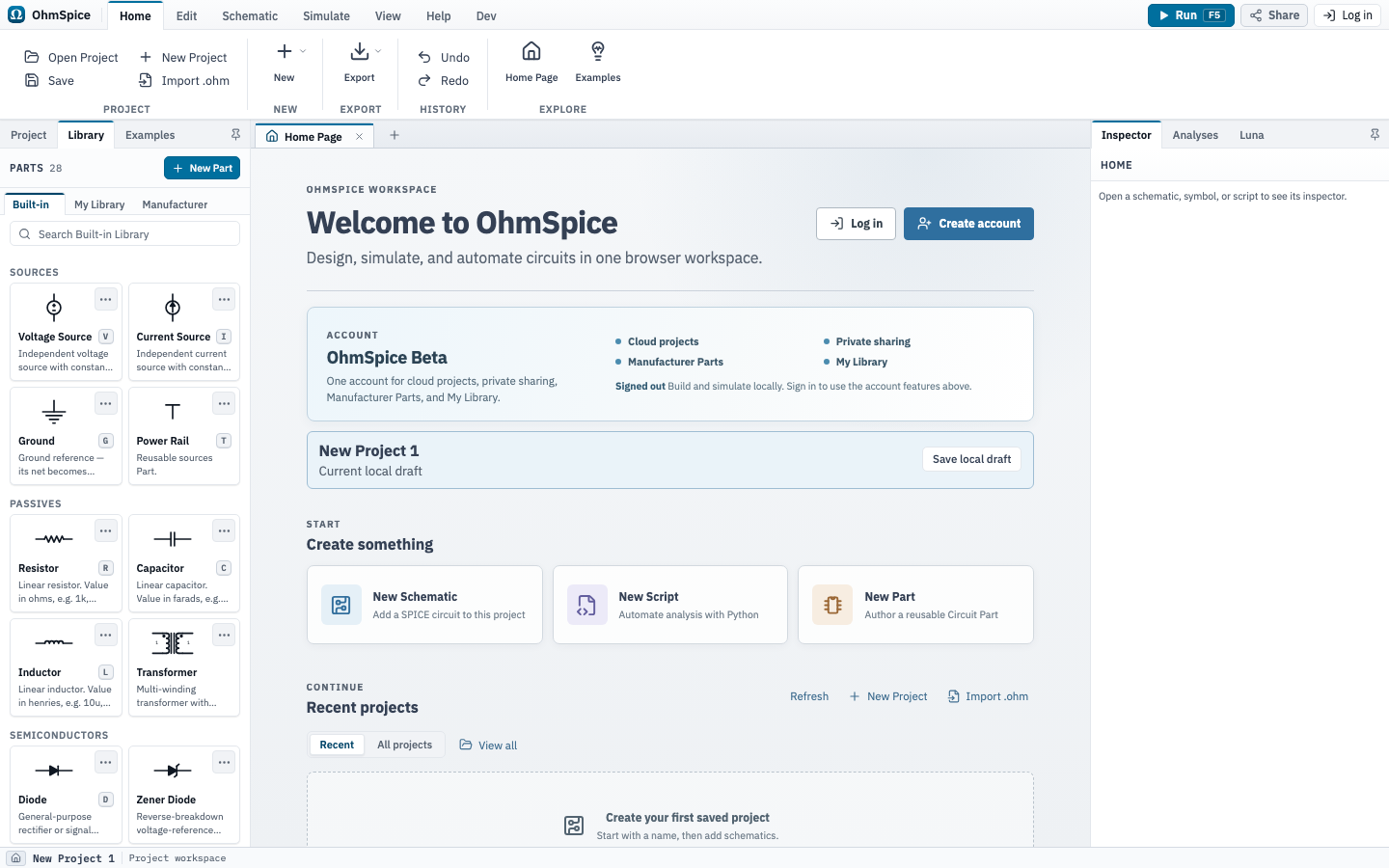
You can create a draft without an account. Your current draft stays in this browser. It is not available on another browser or device. You can edit, simulate, export a .ohm file, or import a .ohm file after confirming that it should replace your current browser draft.
Sign in to save projects, use My Library and Manufacturer Parts, or create a share.
Account projects and My Library
Each account has its own cloud projects and My Library Parts. They belong to your account rather than to a browser or device. My Library is private to your account; see Part authoring and My Library for the Part workflow.
Public is the default visibility. Choose Private when access should be limited to you and invited recipients.
Manage projects and documents
The Home Page shows recently updated projects. ChooseAll projects to search or sort the complete list. A project's menu provides Rename, Duplicate,Export, and Delete. Before deleting a project, export a .ohm backup if you may need the design later.
Inside a project, use the Project panel to switch among Schematics, Scripts, and Outputs. Add a document from its section menu, rename it inline, or use its menu to delete it. Python outputs open read-only under Outputs. They are temporary and are not saved with the project.
Data files
The Project panel's Data files section holds files used byPWL voltage and current sources. Choose Import data file or drop a file onto the section. Importing here adds the file without assigning it to a source. Open a file to inspect its table, parsing options, and source mappings.
A file's menu provides Rename, Download original,Replace file…, and Delete. Replacement asks you to review the mappings of sources using that file before applying the changes together. A referenced file cannot be deleted; remove its source bindings first. Undo can restore an applied mapping or replacement.
Choose Storage usage from the Data files section menu. Uploaded originals and converted waveform data count toward a 50 MB retained project limit and a 100 MB workspace limit. Saved history and pending uploads also retain storage, so deleting or replacing a file does not immediately release its space.
Exporting a project with data files produces an .ohm.zip archive containing the project and its required data, including data inside Parts. Import that archive to restore the complete project. Projects without data files continue to export as .ohm. Keep an exported backup before clearing browser storage. Offline runs require the waveform data to be available in this browser; reconnect if required data is missing.
Sharing or exporting includes all original file columns, including columns no source uses. Remove confidential columns before importing a file you intend to share. Project access controls also apply to its data files.
Save a project
- Select Save in the Home ribbon, or press Ctrl+S.
- If prompted, select Sign in or Create account, then verify the email address.
- In Choose project visibility, select Public or Private.
- Enter a project name when saving a new project.
Saving a project that you opened from a public share creates a project in your own account. It does not modify the original project.
Share a public project
- Sign in with a verified account.
- Open the project you want to share.
- Select Share beside Run.
- Wait for OhmSpice to save the latest changes, then select Copy link or enter an email address and select Send email.
The Share Project dialog identifies this as aPublic project. Anyone with the link can open that project without signing in, edit a copy, run a simulation, and export it. Changes to the copy do not modify the original project.
Share a private project
A Private project is readable by its owner and people granted access. A private share can grant access to a named recipient account without making the project public.
- Open a Private project and select Share beside Run.
- In Project access, enter the recipient's email under Recipient email, then select Add recipient.
- Copy the project link. Use Resend or Remove access to manage that recipient later.
The recipient must sign in or create an account with the invited email address and verify it. Only that verified account can open the project. Forwarding the link does not give someone else access.
Open a shared project
Open the shared-project link in a supported browser. A public link opens directly in the local editor. A private link shows Sign in to continue. Select Sign in or Create account; the project opens once you sign in with an account that has access. Sign in to save your own copy of a shared project.
Changing a project from Public to Private revokes its active public links immediately. Making it public again requires a new public link.
Parts in shared projects
A shared project includes the custom and vendor Parts it uses. Recipients can simulate the project without access to the owner's My Library or a separate model download. The model's license still applies; seeVendor model import.
If a link does not open
- Use Copy link in Share Project to copy the complete link.
- Ask the sender to create a new link if the shared project is no longer available.